1
Install TestFlight
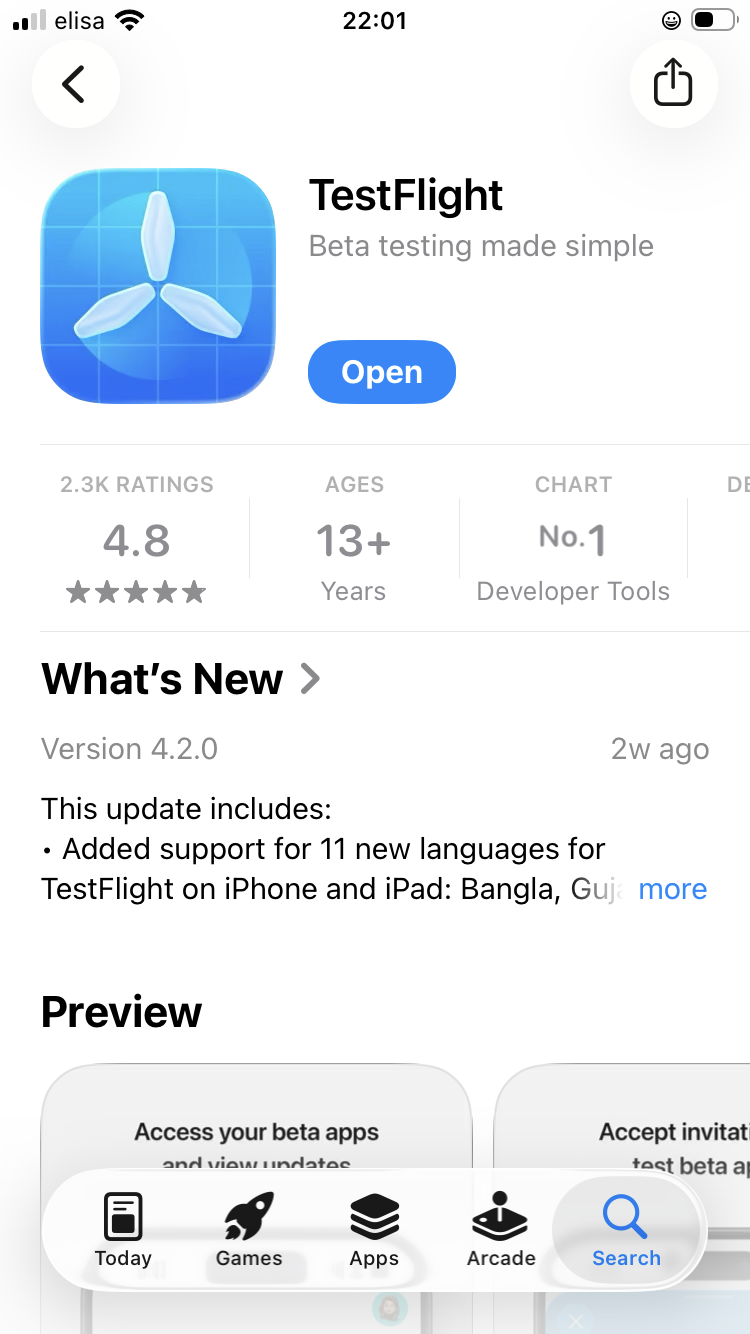
Open the App Store, search for TestFlight, and install Apple's TestFlight app.
Asenna TestFlight
Avaa App Store, hae TestFlight ja asenna Applen TestFlight-sovellus.
Follow these steps on the iPhone that will be used for VoxGuard testing.
Open the App Store, search for TestFlight, and install Apple's TestFlight app.
Avaa App Store, hae TestFlight ja asenna Applen TestFlight-sovellus.
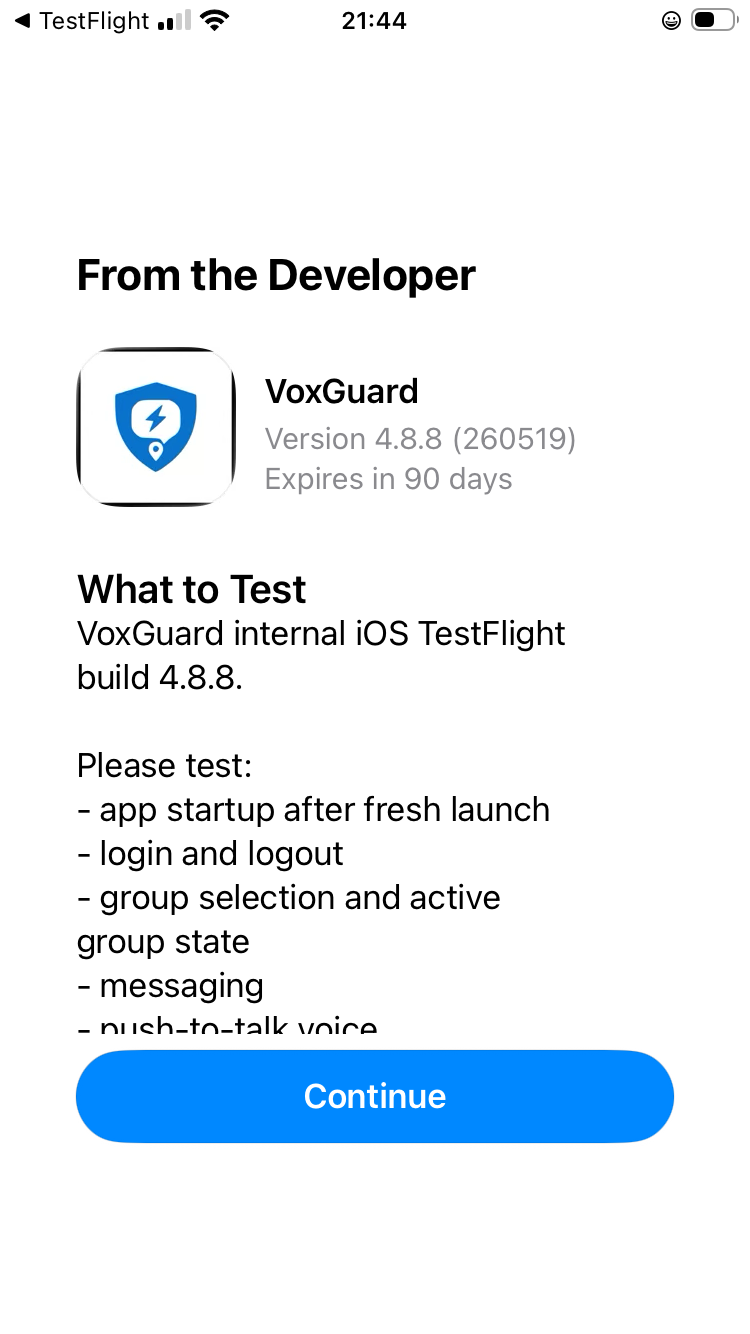
Open the VoxGuard invitation or open TestFlight and select VoxGuard. Tap Install or Update.
Avaa VoxGuard-kutsu tai avaa TestFlight ja valitse VoxGuard. Paina Install tai Update.
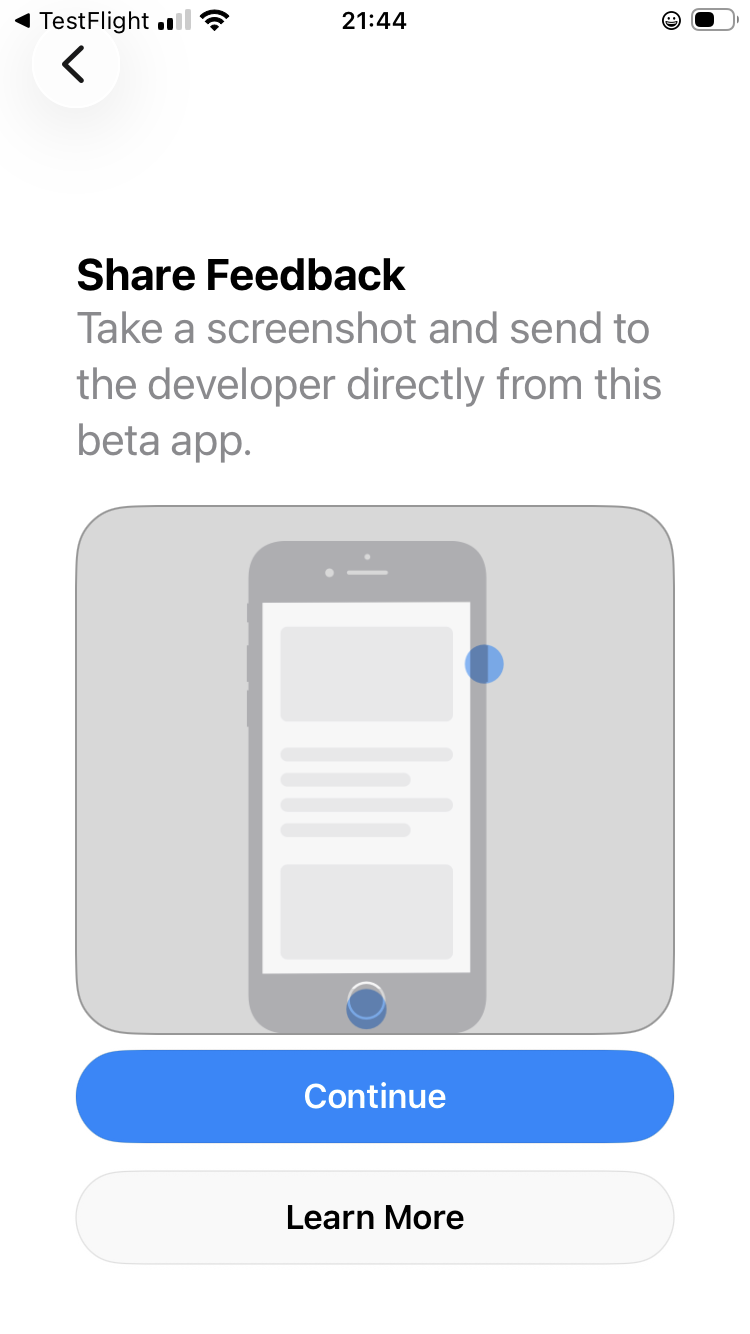
TestFlight may show information about sharing feedback and crash reports. Continue to the next screen.
TestFlight voi näyttää tietoa palautteesta ja kaatumisraporteista. Jatka seuraavaan näkymään.
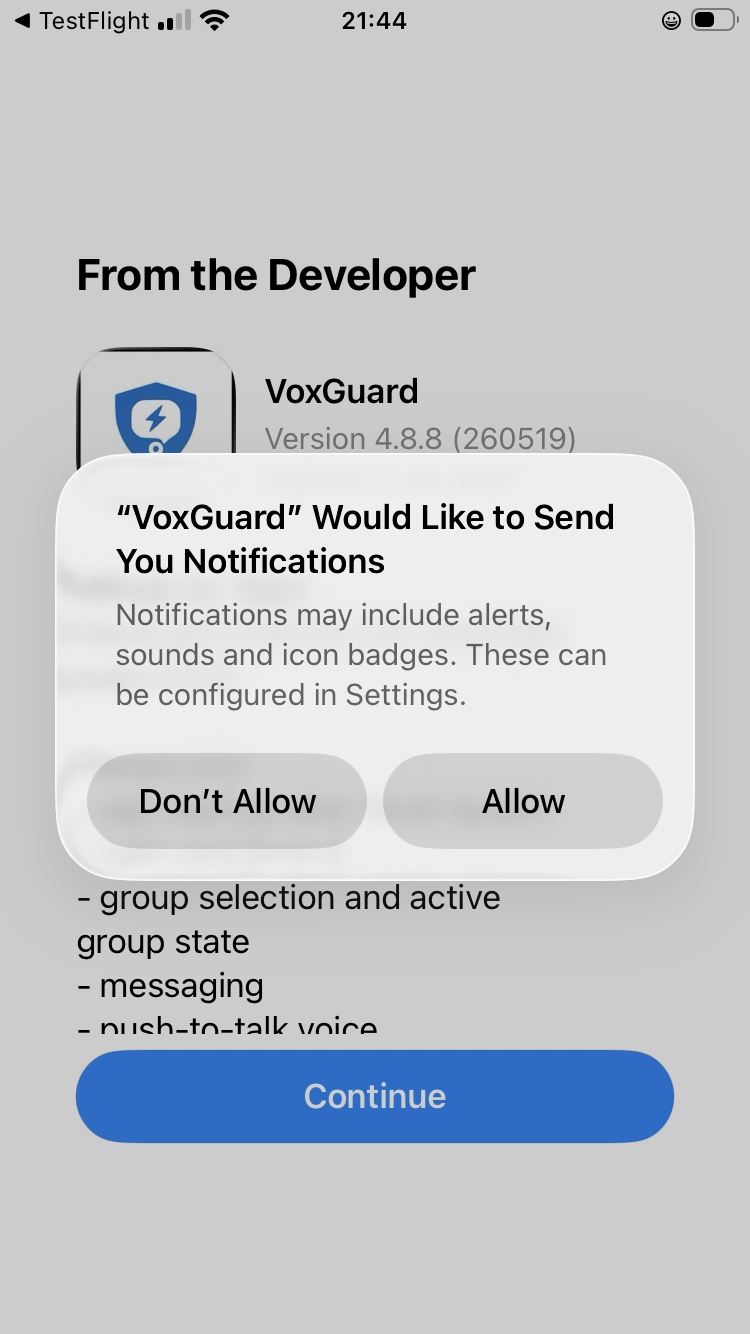
Allow notifications so VoxGuard can show operational alerts and messages during testing.
Salli ilmoitukset, jotta VoxGuard voi näyttää hälytykset ja viestit testauksen aikana.
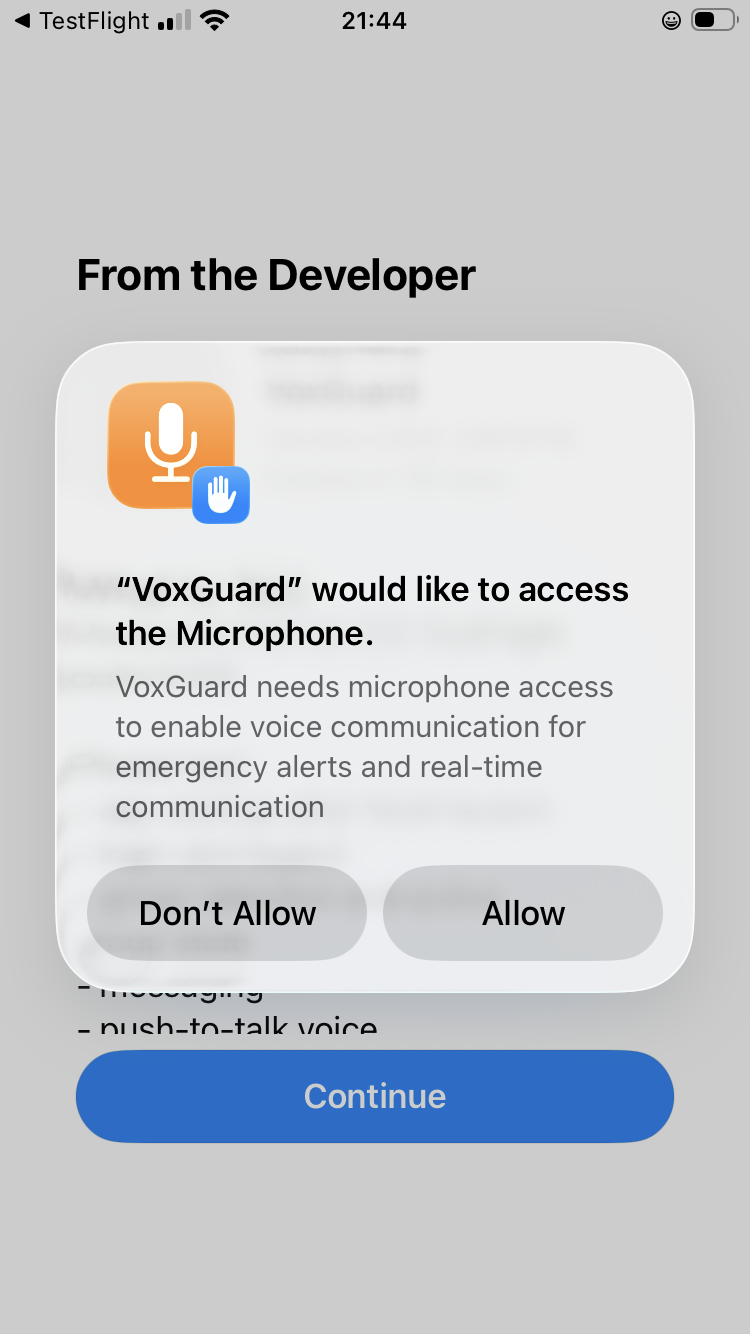
Allow microphone access if you will test push-to-talk or voice features.
Salli mikrofonin käyttö, jos testaat push-to-talkia tai äänitoimintoja.
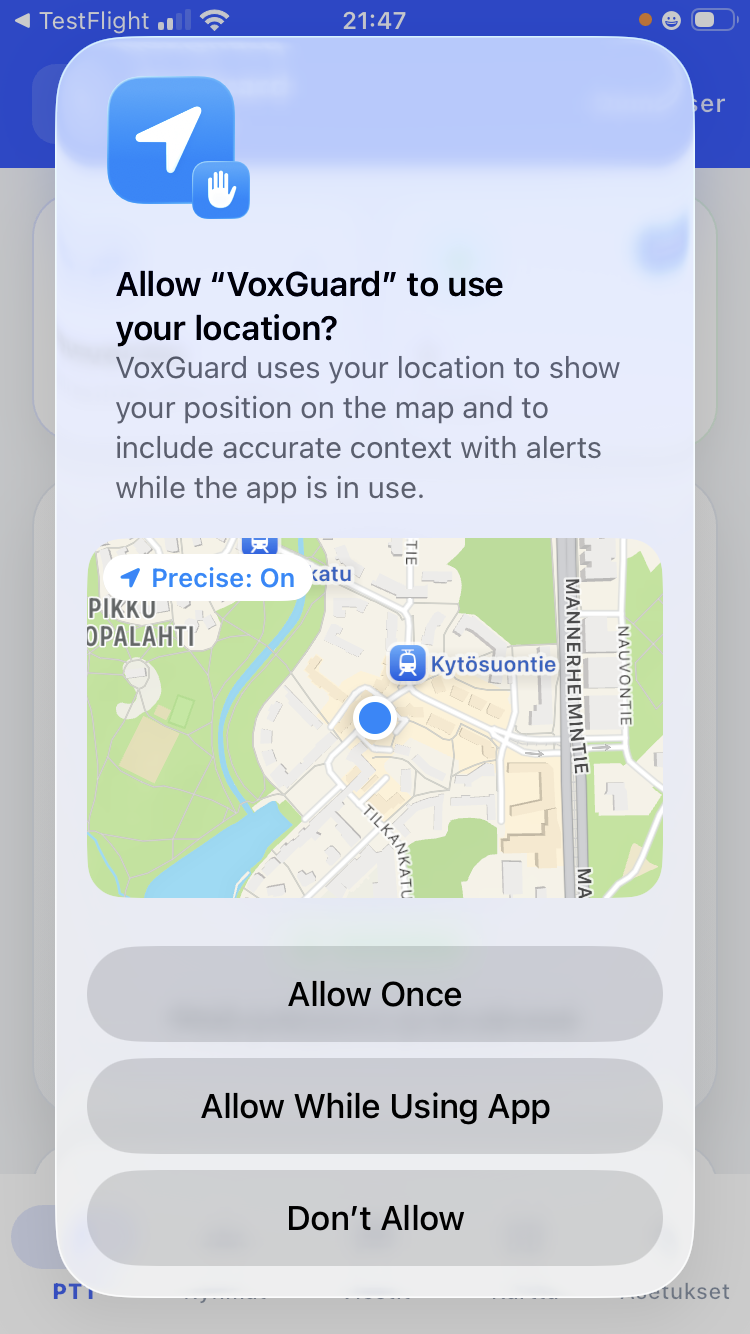
If location sharing or map features are part of your test, allow location access when iOS asks for it.
Jos testaat sijainnin jakoa tai karttatoimintoja, salli sijainnin käyttö iOS:n kysyessä lupaa.
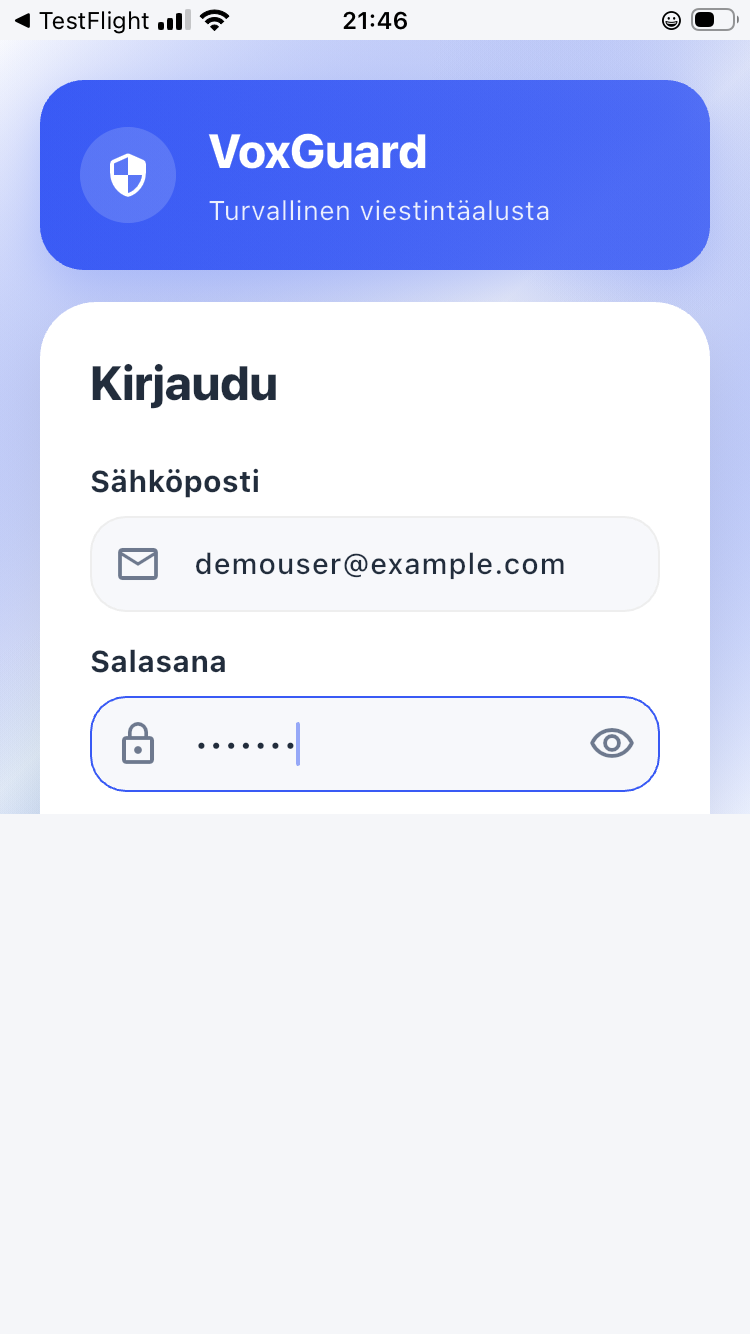
Sign in with the VoxGuard account details provided by the pilot administrator.
Kirjaudu sisään pilotin ylläpitäjän antamilla VoxGuard-tunnuksilla.
Confirm that TestFlight is installed, that you are using the Apple ID connected to the invitation, and that the VoxGuard build is visible in TestFlight. Apple's TestFlight information is available at developer.apple.com/testflight.
Tarkista, että TestFlight on asennettu, käytät kutsuun liitettyä Apple ID:tä ja VoxGuard-build näkyy TestFlightissa. Applen TestFlight-sivu on osoitteessa developer.apple.com/testflight.